Launch workloads with the Run:ai CLI
The Run:ai CLI is useful when a workload definition is stable enough to repeat from a script or terminal. Start with the portal while learning the fields, then translate the approved project, environment, compute resource, and data source into CLI flags.
The CLI is available only after account creation. Follow Install and verify the command-line tools before using this page.
Sign in and set the project
Section titled “Sign in and set the project”runai loginrunai project listrunai project set PROJECT_NAMErunai whoamiSetting the project reduces repetition, but keeping
--project PROJECT_NAME in saved commands makes their target explicit. Run
runai project set again when you intentionally switch projects.
Inspect the command before submitting
Section titled “Inspect the command before submitting”The installed CLI matches the Spike Run:ai environment and can change after a platform update. Check its built-in help before adding flags:
runai versionrunai training standard submit --helpNVIDIA maintains the complete Run:ai CLI command reference and a set of CLI examples.
Submit a standard training workload
Section titled “Submit a standard training workload”Replace every uppercase placeholder with a value visible in your Run:ai project:
runai training standard submit cli-smoke-test \ --project PROJECT_NAME \ --environment ENVIRONMENT_NAME \ --compute COMPUTE_RESOURCE_NAME \ --datasource type=pvc,name=DATA_SOURCE_NAME \ --command -- python /workspace/train.py --epochs 1This example deliberately reuses Run:ai assets instead of rebuilding their settings as raw flags:
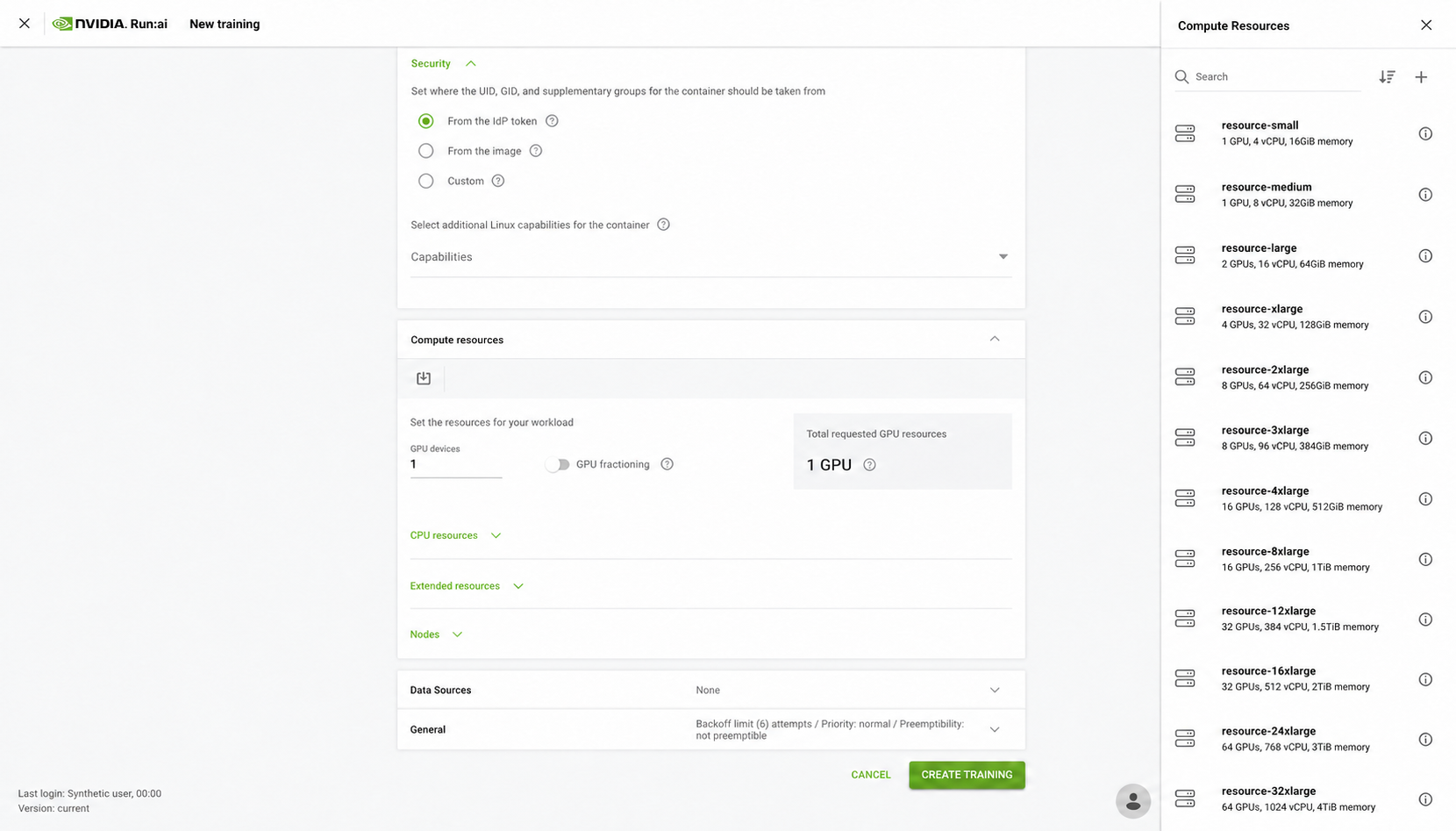
--environmentselects the approved container environment.--computeselects an existing compute-resource preset.--datasourceattaches the project data source.--command --replaces the image entrypoint with everything that follows.
Omit --datasource when the test does not need project data. Omit
--command -- ... when the image’s own entrypoint is already correct. See the
official runai training standard submit
reference
for the flags supported by the installed release.
Inspect the run
Section titled “Inspect the run”runai training standard list --project PROJECT_NAMErunai training standard describe cli-smoke-test --project PROJECT_NAMErunai training standard logs cli-smoke-test \ --project PROJECT_NAME \ --follow \ --timestampsUse describe to inspect the selected image, compute, pods, and events. Stop
following logs with Ctrl+C; that does not stop the workload.
Suspend, resume, and remove
Section titled “Suspend, resume, and remove”runai training standard suspend cli-smoke-test --project PROJECT_NAMErunai training standard resume cli-smoke-test --project PROJECT_NAMErunai training standard delete cli-smoke-test --project PROJECT_NAMEDelete only after outputs and diagnostic logs are safe. Suspending does not make ephemeral files persistent. Use the portal when you are unsure which workload a command targets.