Run a training workload
Use a training workload for non-interactive work that should have a clear command, logs, and completion state. Use an interactive workspace only when you need a shell or notebook session, and use an inference workload for a serving endpoint.
First training run
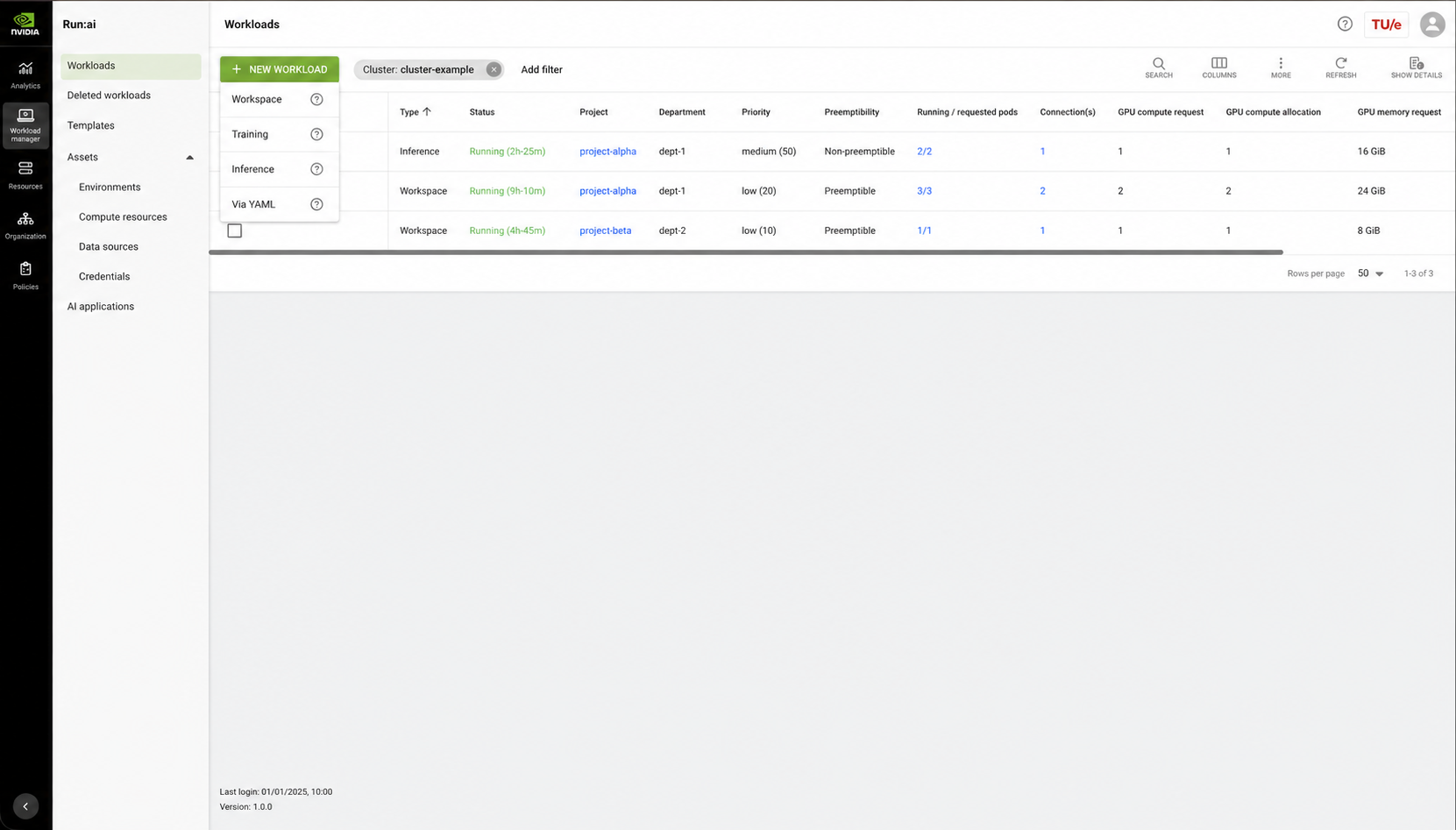
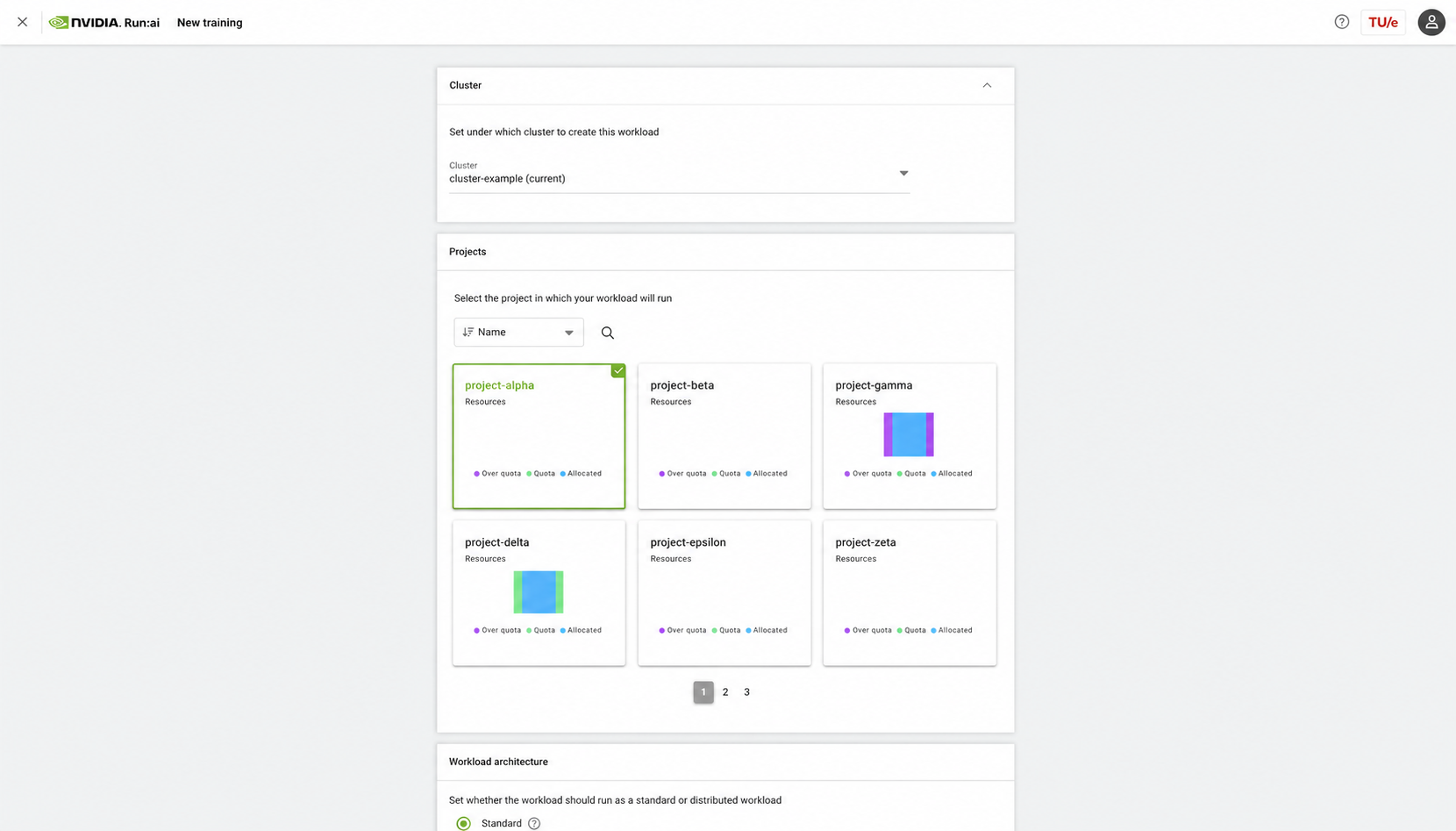
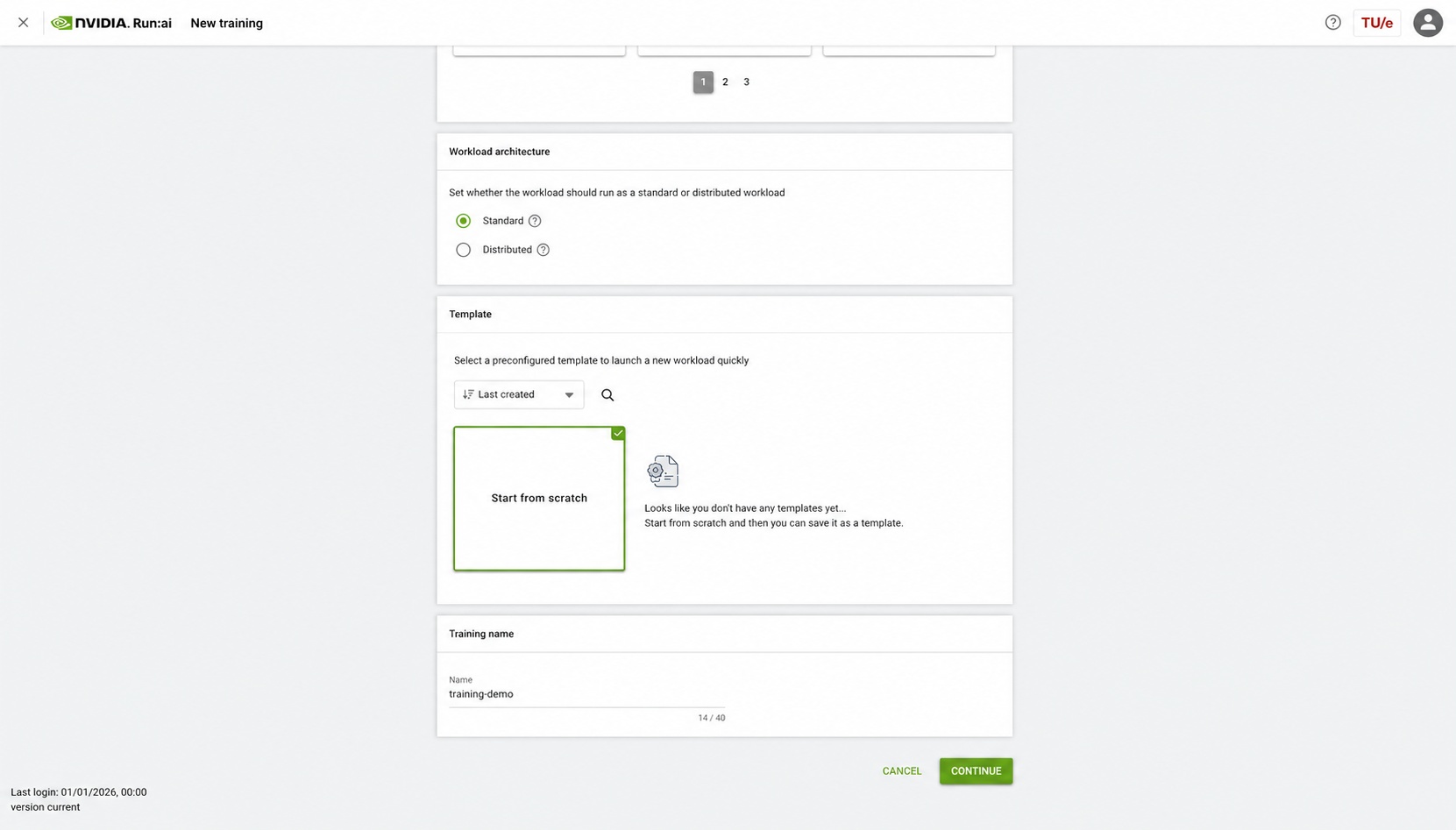
Section titled “First training run”- In Run:ai, select the correct project and choose New workload → Training.
- Give the workload a descriptive, non-sensitive name.
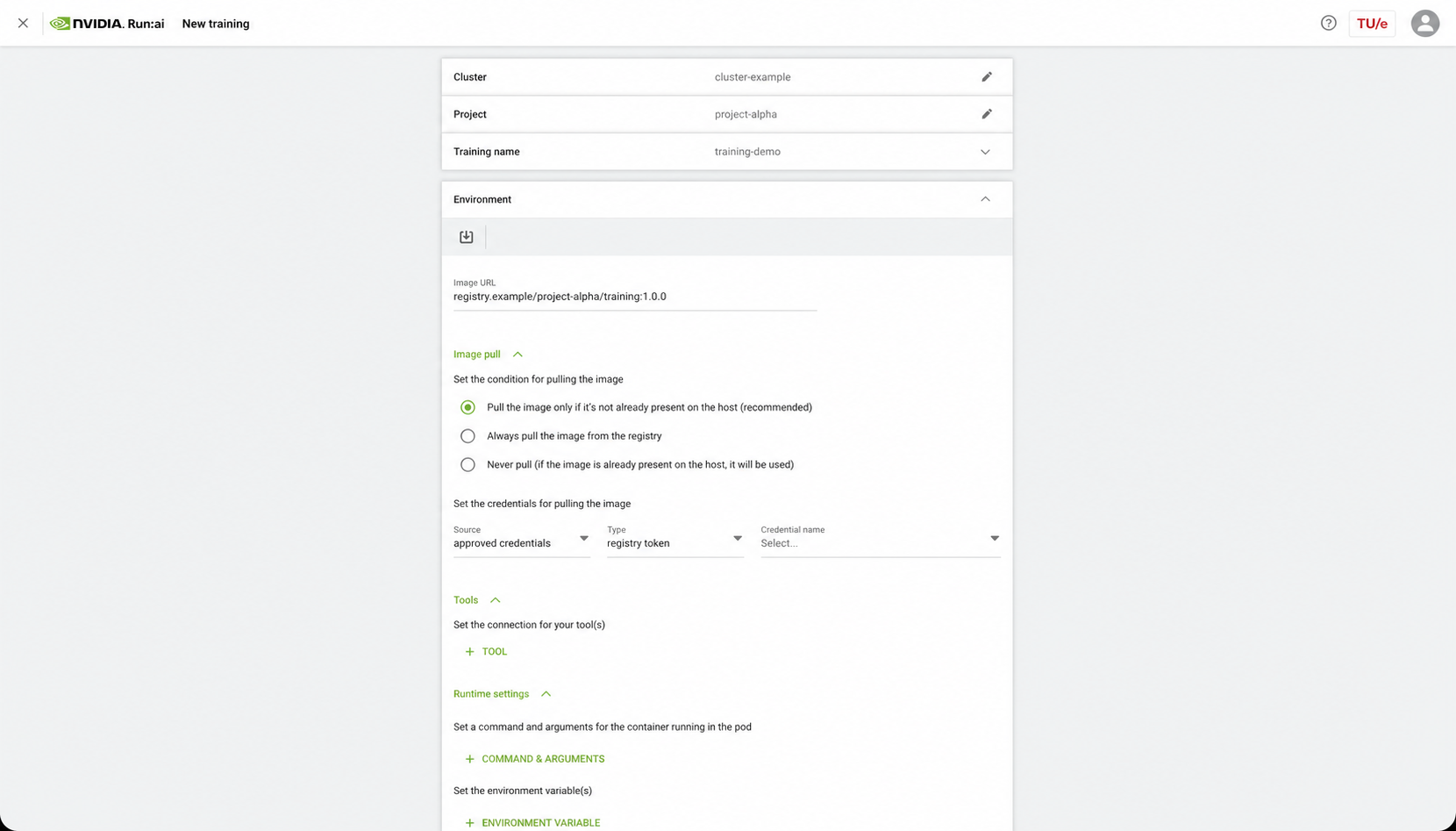
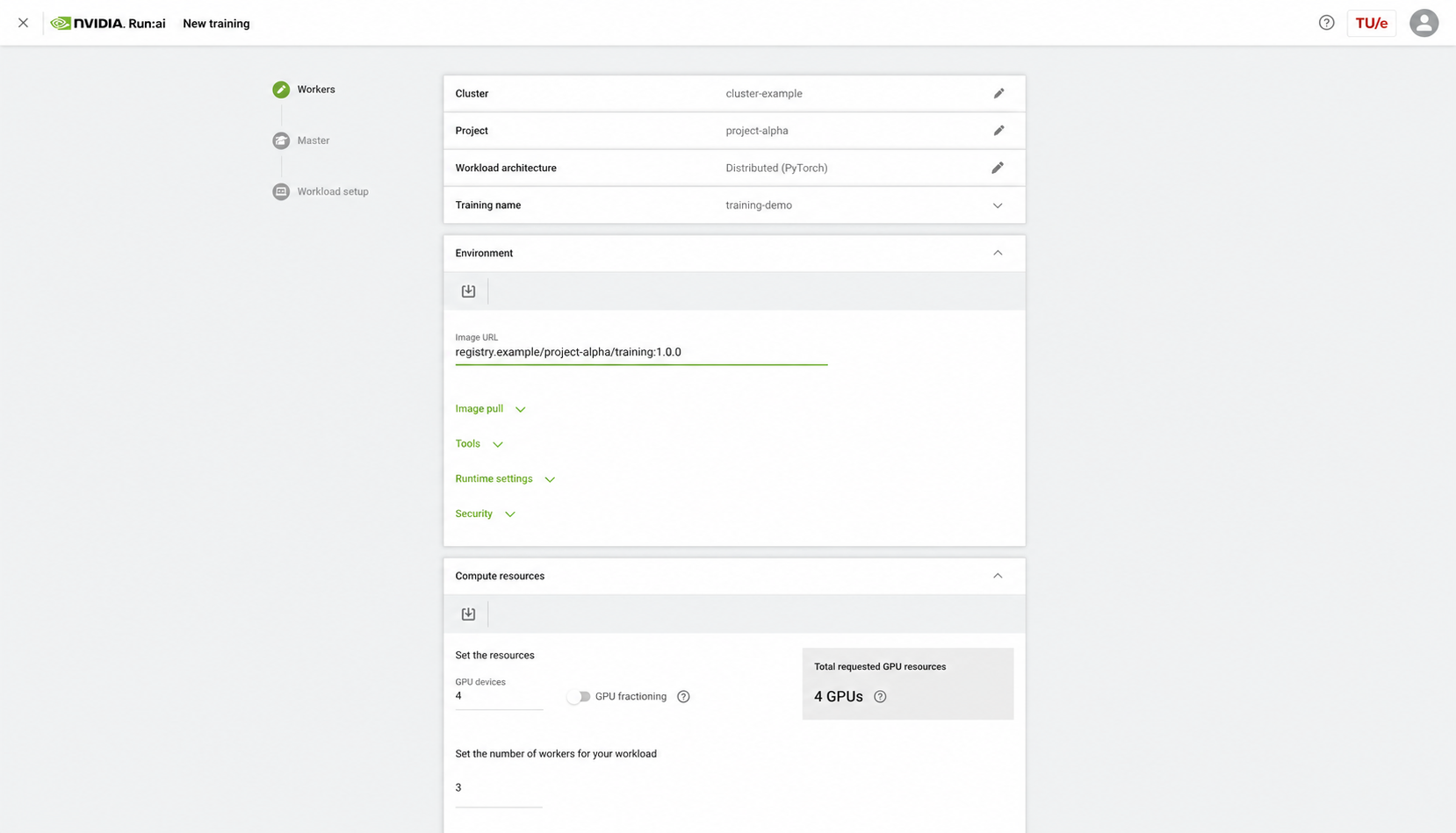
- Select the environment or image tag you published in Harbor.
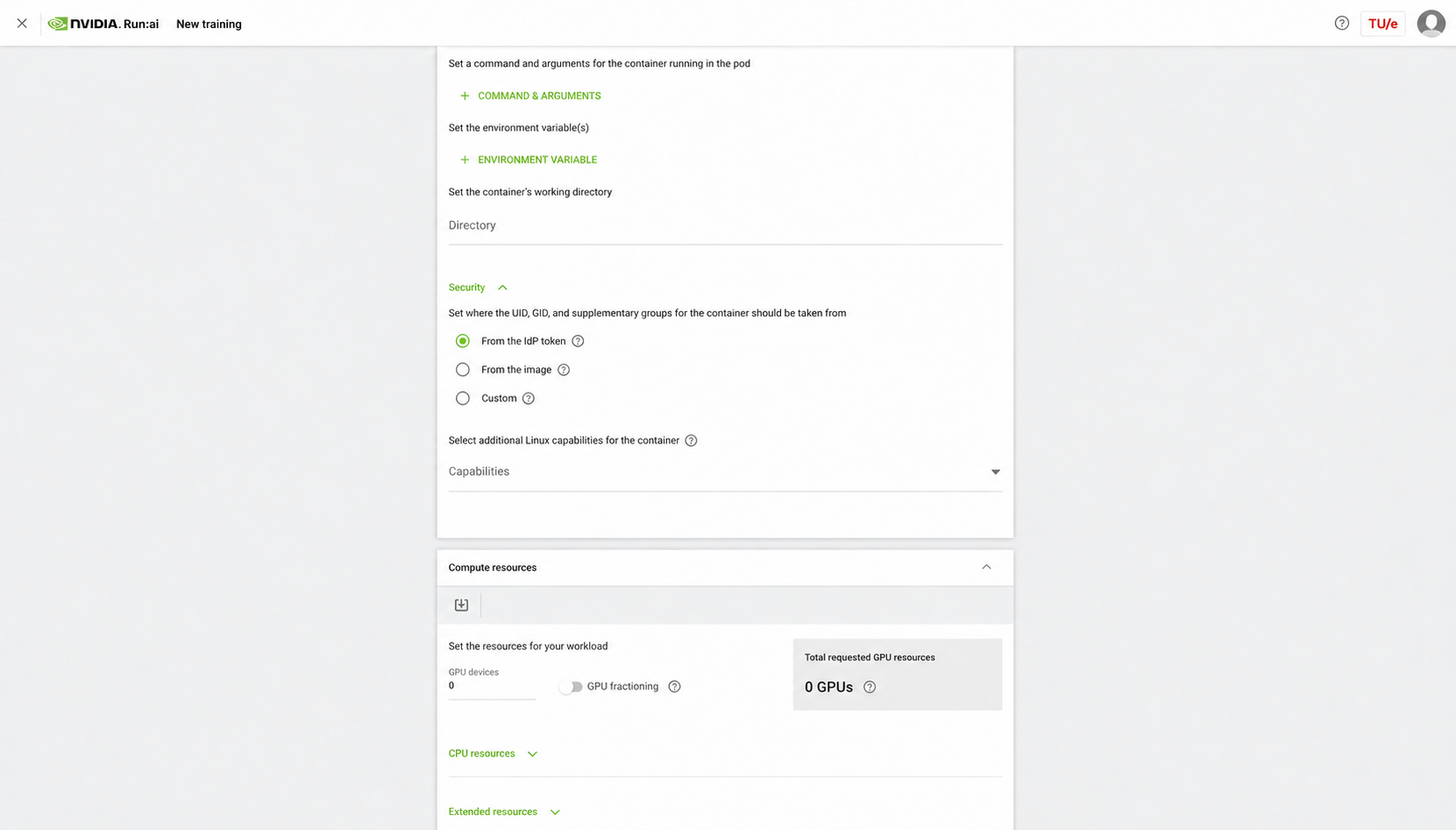
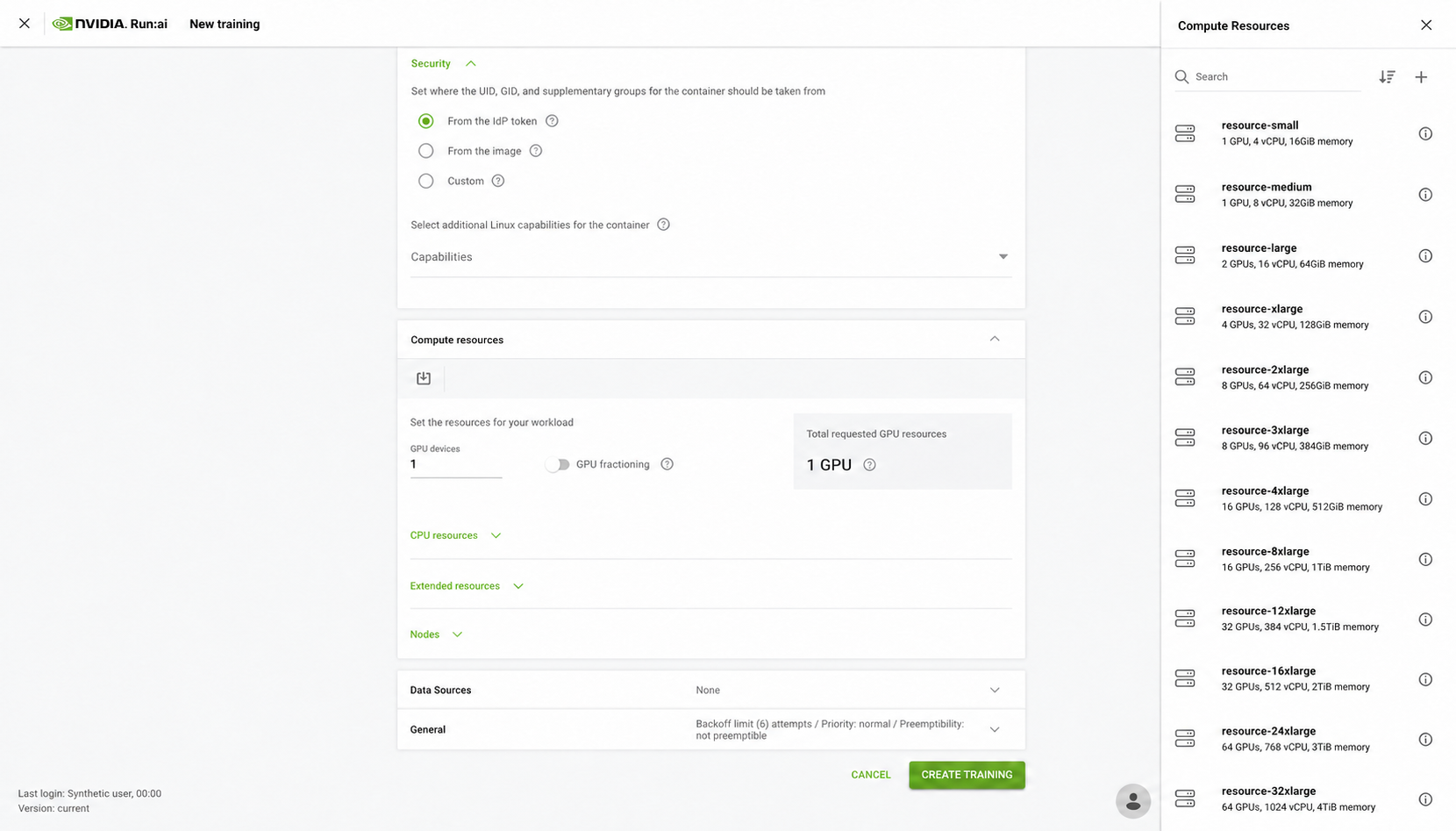
- Select the smallest approved compute-resource preset that can run the test.
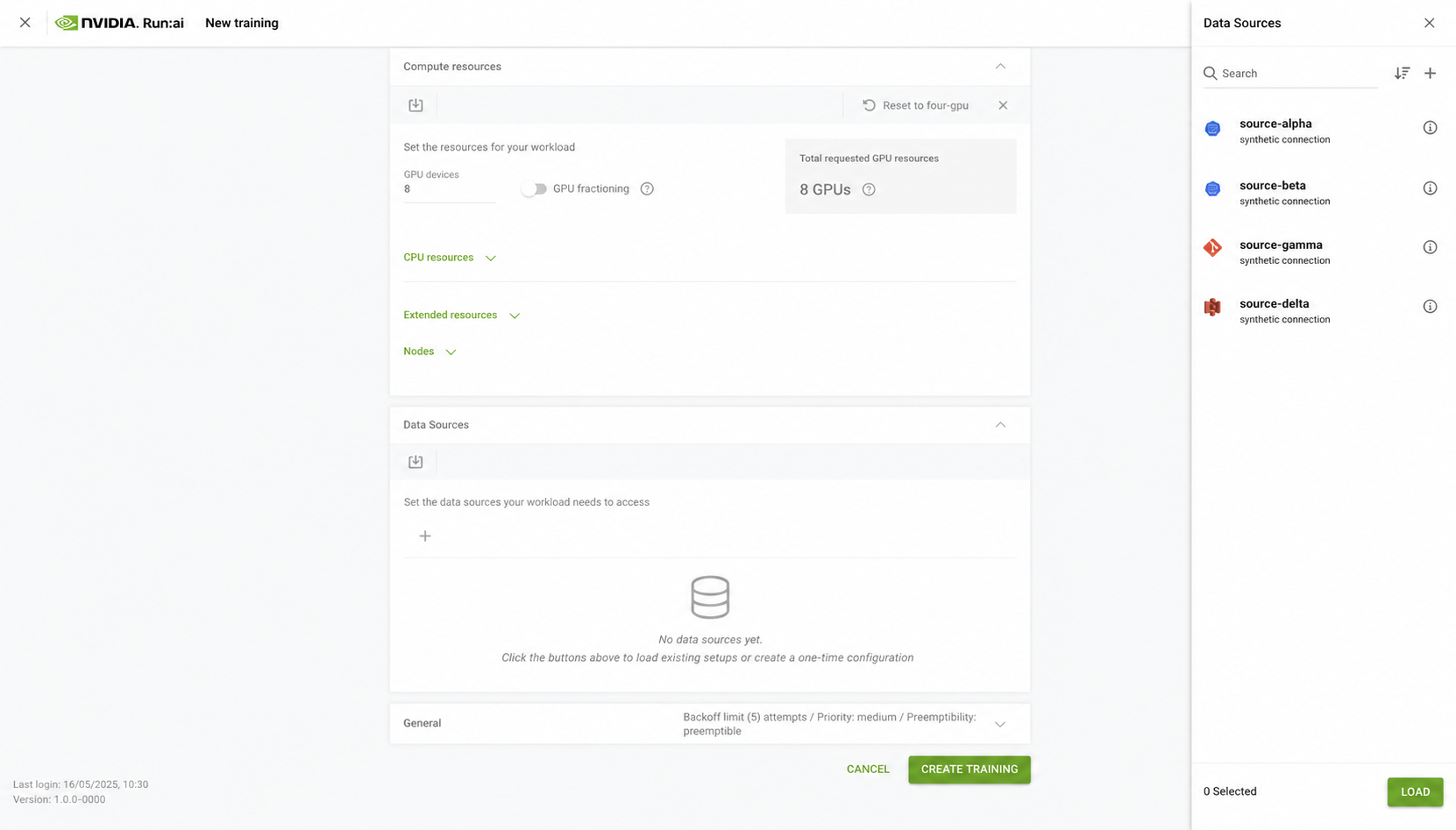
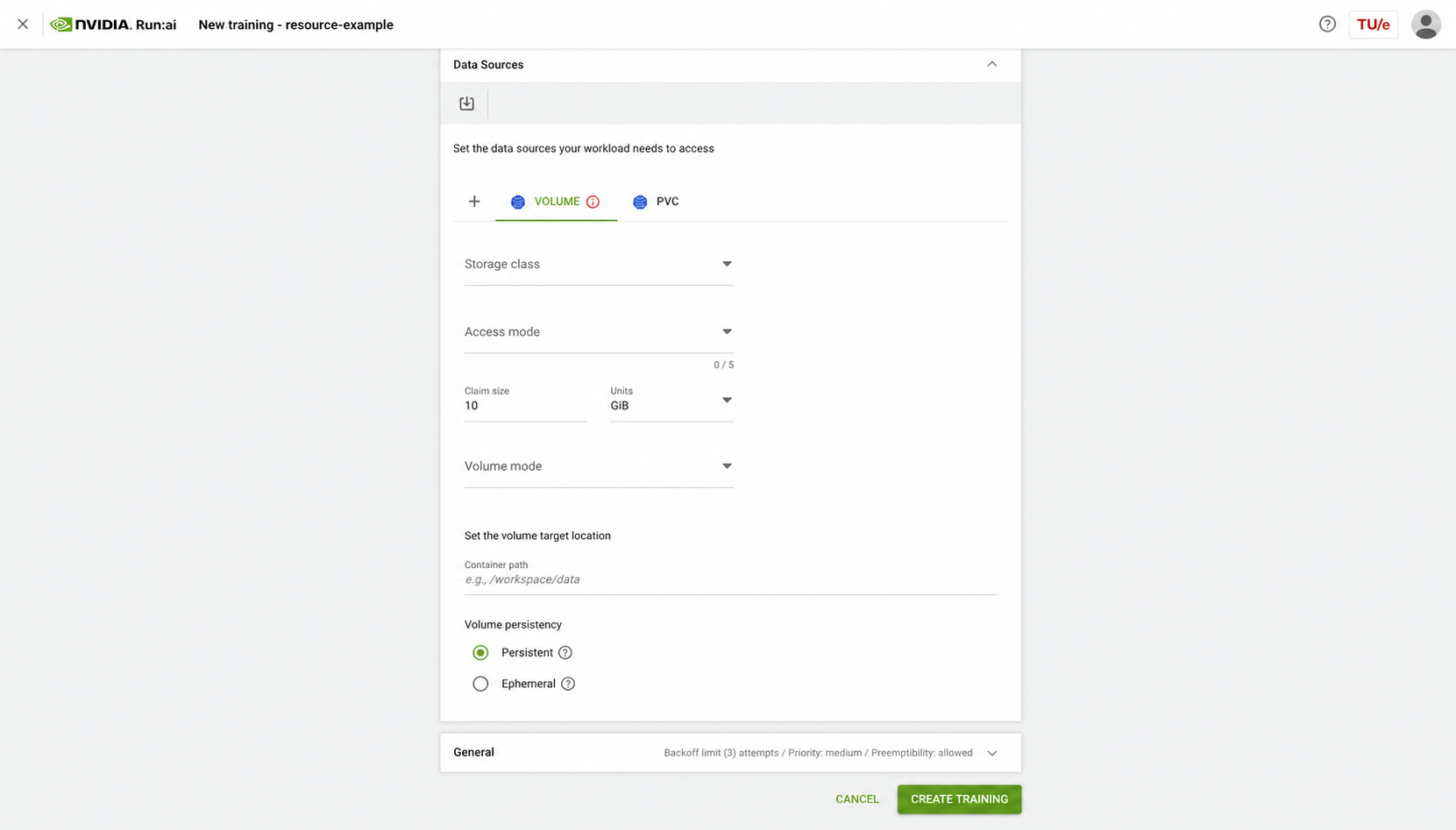
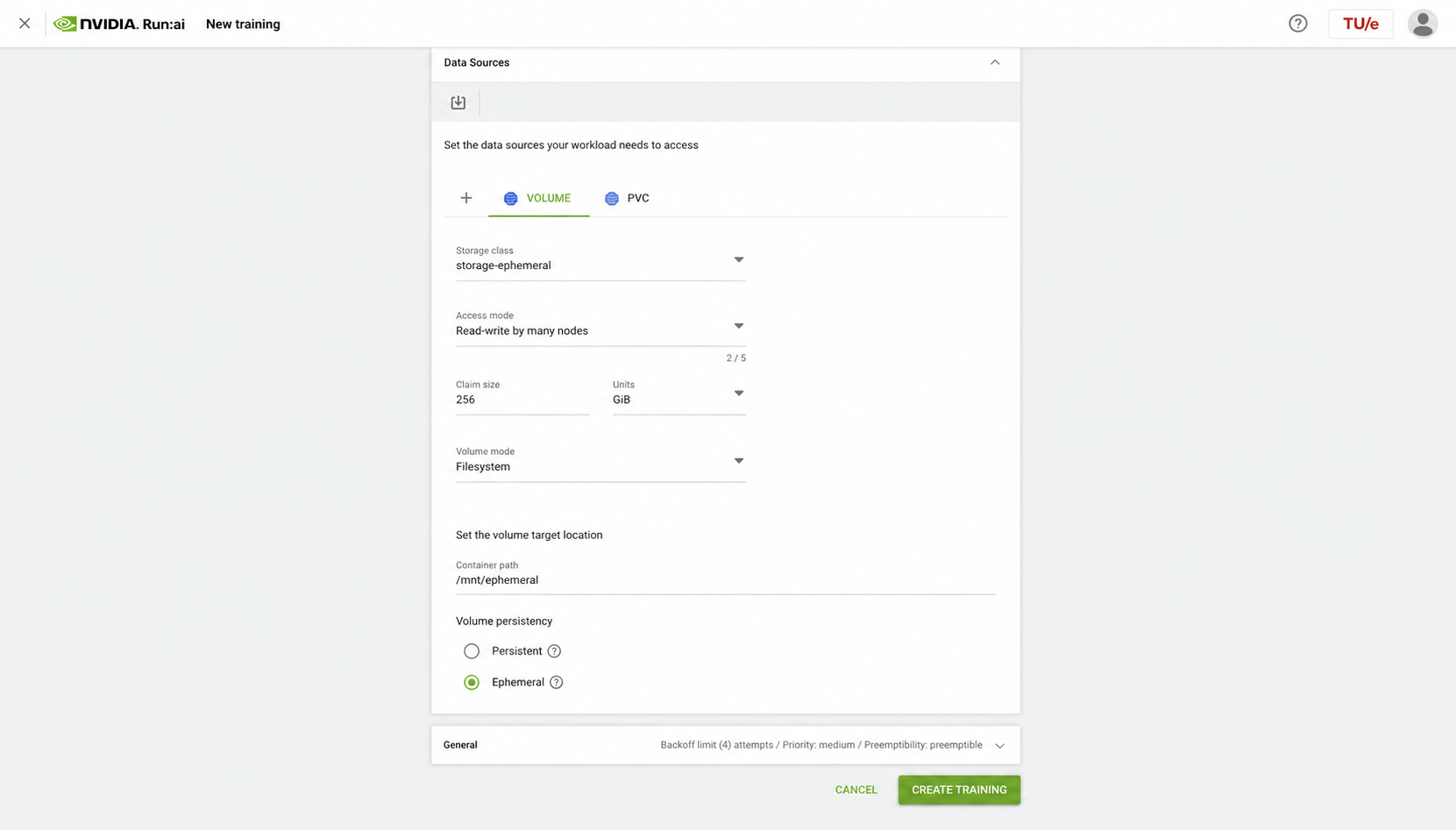
- Attach the required data source or persistent volume. Use ephemeral storage only for disposable data.
- Enter a command that produces a visible result, submit it, then open the workload details.
- Follow the logs until the workload reaches Running and then Completed.
Shared memory for data loaders
Section titled “Shared memory for data loaders”Linux containers normally have a small /dev/shm shared-memory filesystem.
Multiprocessing data loaders, browser processes, and distributed communication
libraries can exhaust it even when normal CPU and GPU memory are still
available. Typical symptoms include a data-loader worker exiting unexpectedly,
Bus error, or No space left on device for /dev/shm.
Check the current allocation inside a small running workload:
df -h /dev/shmIf the workload needs more shared memory, discuss the required size and reason with your SCC AI Engineer. They can approve a compute resource with Increase shared memory size enabled. NVIDIA documents this setting in the Run:ai compute-resource guide. Do not change the compute-resource preset yourself.
Some workloads instead need an engineer-approved ephemeral volume mounted at
/dev/shm. In that case, use only the storage class, size, and persistence
choice provided by the engineer. The volume is disposable and may use storage
rather than RAM; it is not a location for checkpoints or the only copy of
results.
After the change, rerun the smallest test, check df -h /dev/shm, and confirm
that data-loader workers start and stop cleanly. Increasing shared memory does
not fix an application that leaks workers or creates more processes than the
approved CPU allocation can sustain.
GPU quota, priority, and retries
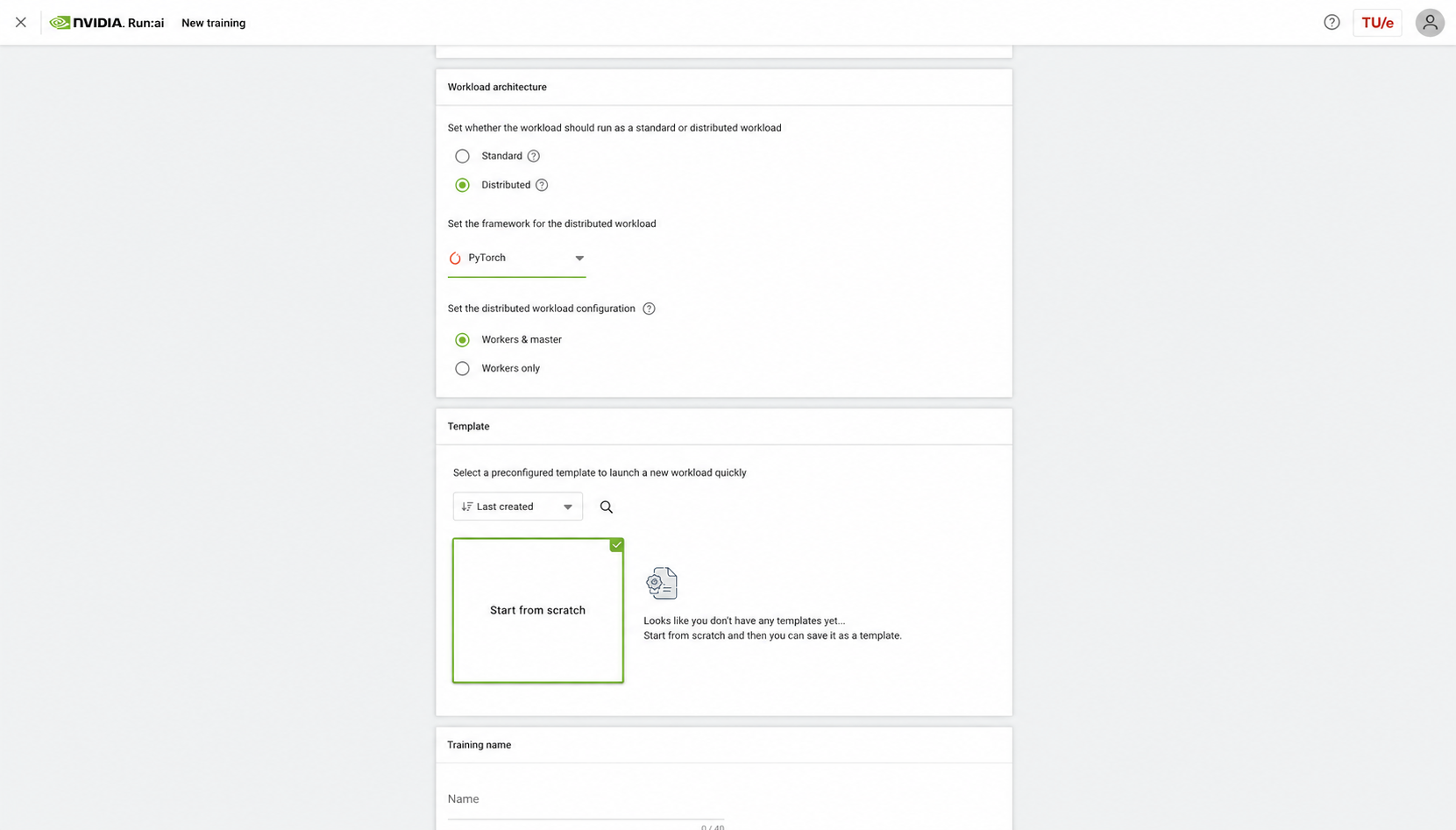
Section titled “GPU quota, priority, and retries”Start with one GPU. Request a fractional GPU only where the selected compute-resource preset explicitly supports it. Multi-GPU and distributed training require an application launcher and architecture that match the selected resources; test the single-GPU path first.
The default scheduling state
Section titled “The default scheduling state”Projects normally submit work in the over-quota state. Over-quota work may use otherwise idle GPUs, but it has no guaranteed start time and may be preempted. When several projects compete for over-quota capacity, scheduler fairness is proportional to each project’s configured GPU quota; it is not equal weighting. An ordinary request therefore receives neither reserved capacity nor a project-specific priority advantage.
Requesting a scale-up
Section titled “Requesting a scale-up”When a project is ready for a larger run, request a temporary quota and priority change from the Spike administrators. Include:
- The project and workload owner.
- The GPU type, count, and compute-resource preset required.
- Why the scale-up is ready now (for example, the one-GPU run is validated).
- The requested start date and number of weeks for the scale-up.
- Expected utilization, checkpointing, and a contact for the work.
The administrators decide whether to grant the additional quota. If approved, they grant the project GPU priority for the agreed number of weeks. This is a temporary scheduling window for the scale-up, not a permanent change to the project’s allocation.
When the priority window ends
Section titled “When the priority window ends”At the end of the agreed period, the administrators scale the project back to its normal over-quota state. Plan checkpoints, evaluation, and cleanup before the window expires; do not assume that the temporary priority will continue.
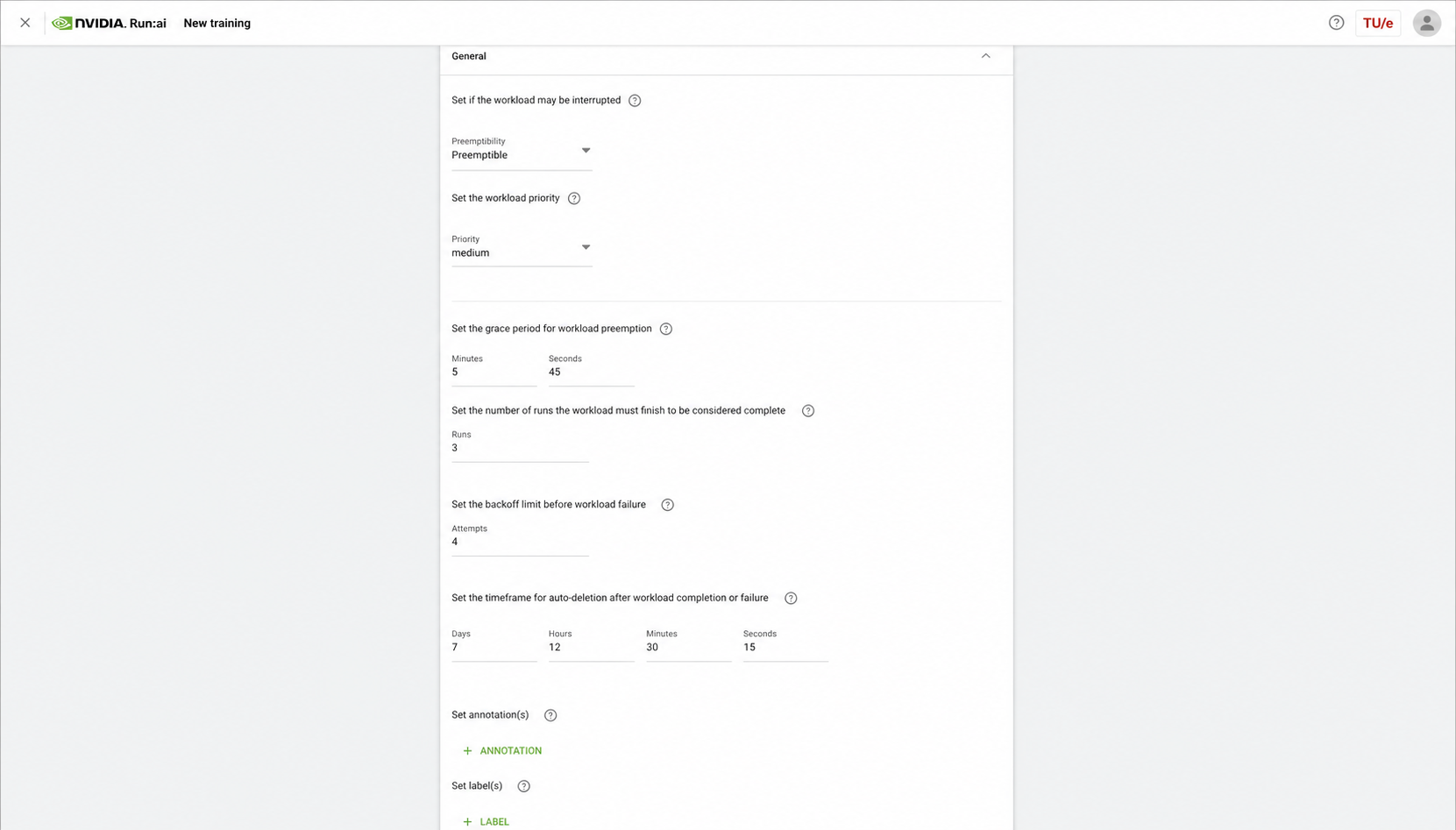
Priority does not remove workload limits or make an unsuitable request schedulable. The selected resource, available GPU type, workload state, preemptibility, and project policy still apply. A preemptible workload must persist checkpoints and tolerate being retried. Cancel stale test workloads and delete completed disposable workloads to keep project resources understandable.